
عن التطبيق
Tooth Fairy helps you to switch connection of a selected bluetooth device, for example, AirPods, directly from menu bar or even global hotkey. You can do it with the system bluetooth menu bar but Tooth Fairy can save you a few clicks.
WHAT’S NEW
Version 2.8.8:
Due to an issue in macOS Tahoe 26, sometimes a Blueooth device will be correctly paired with the Mac but not shown in the Bluetooth selector dialog when you try to add the device in ToothFairy. If that happens, go to “System Settings > Bluetooth” and click the “i” button next to your device. Then click “Forget This Device…” and then “Forget Device”. Then re-pair the Bluetooth device with your Mac. Now it should show up in the Bluetooth selector dialog in ToothFairy. The dialog now includes some text explaining this.
Removed an unused icon file.
REQUIREMENTS
macOS 10.13 or later, 64-bit processor
ScreenShots :
ملحقات موصى بها
روابط تابعة لـ AliExpress — قد نحصل على عمولة عند الشراء عبرها، دون أي تكلفة إضافية عليك.
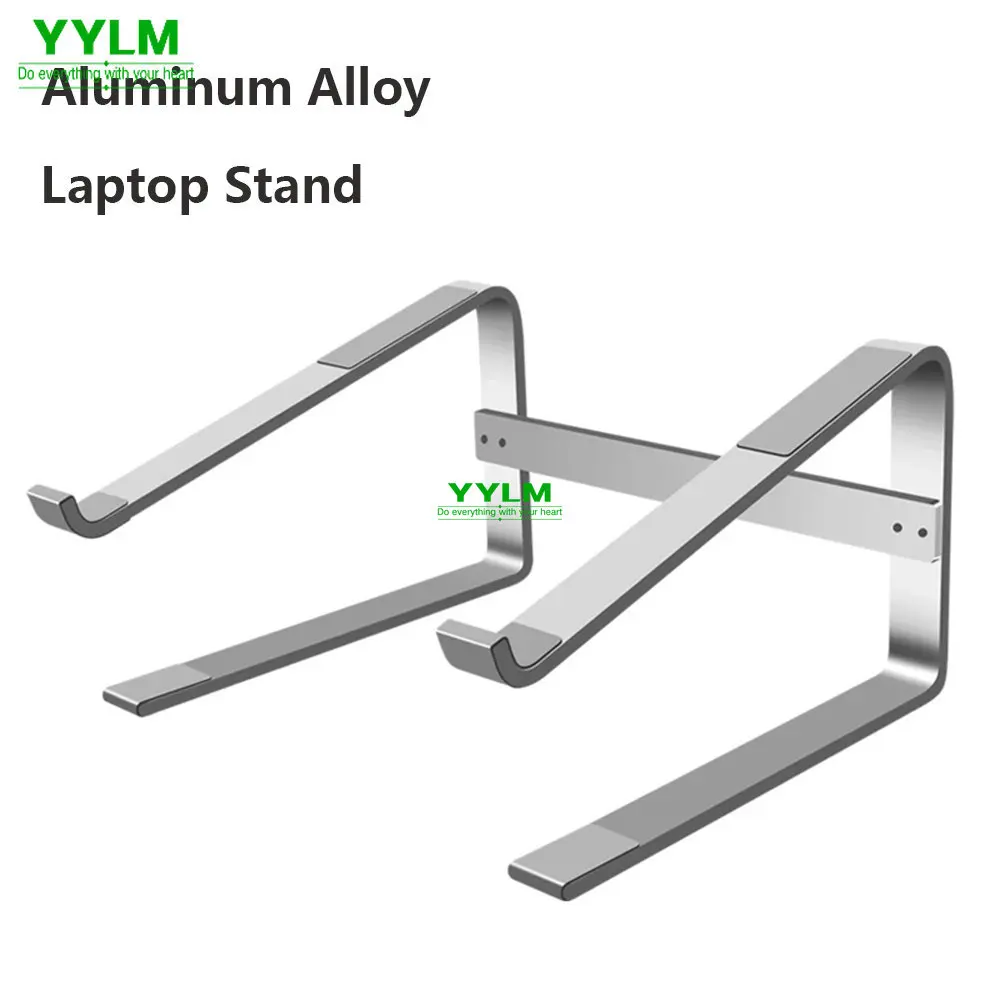 Aluminum Laptop Stand Notebook Riser Holder For Macbook Air 13…
9.08 USD
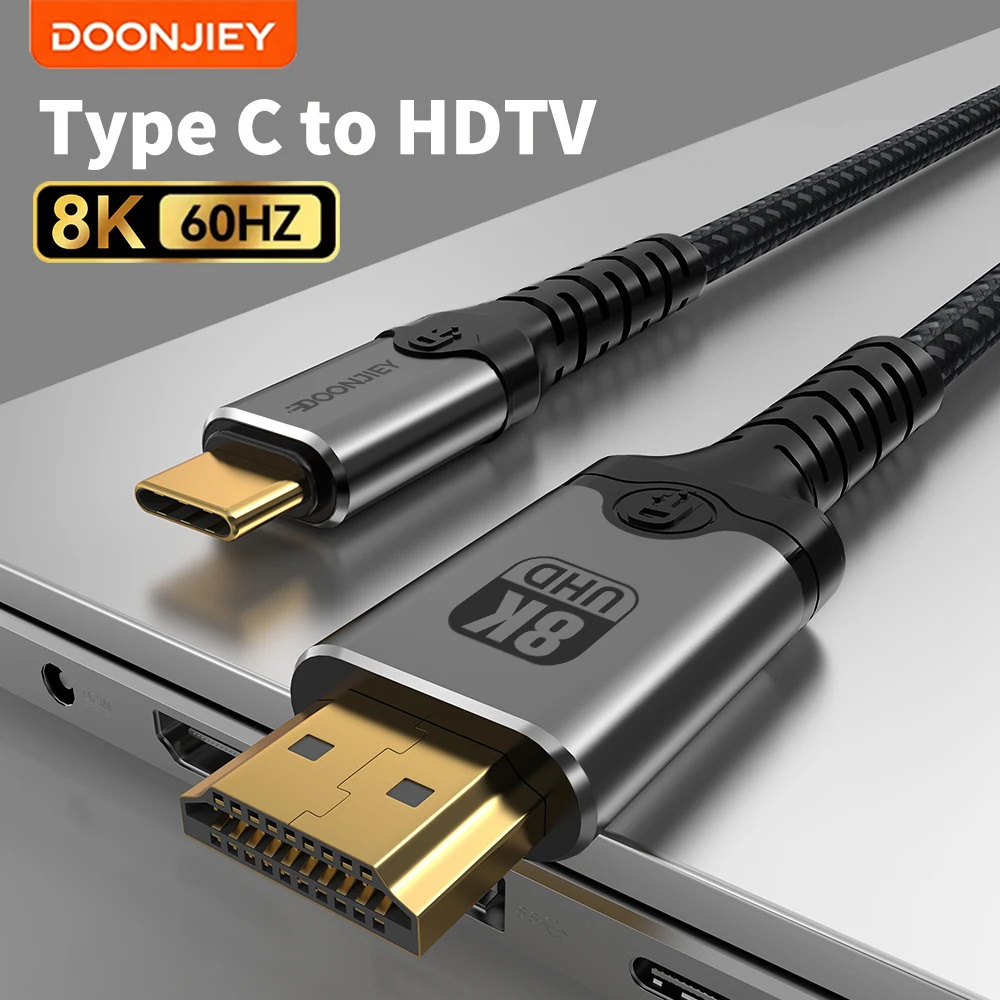 DOONJIEY USB C to HDMI-Compatible Cable 8K@60Hz 4K@120Hz Type C…
22.13 USD
 8 In 2 USB-C Hub With 3.0 SD/TF Card Reader…
5.91 USD
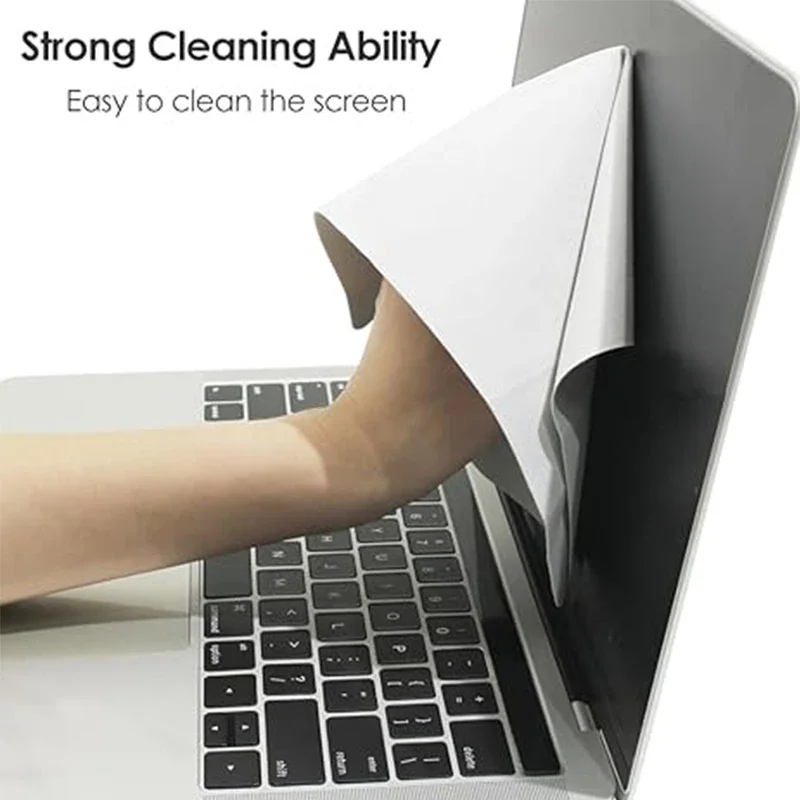 Microfiber Dustproof Cleaning Cloth, Notebook Keyboard Cover & Laptop Screen…
2.42 USD
 Baseus EH3 12-in-1 USB C Hub HDMI DP 4K 60Hz…
78.95 USD
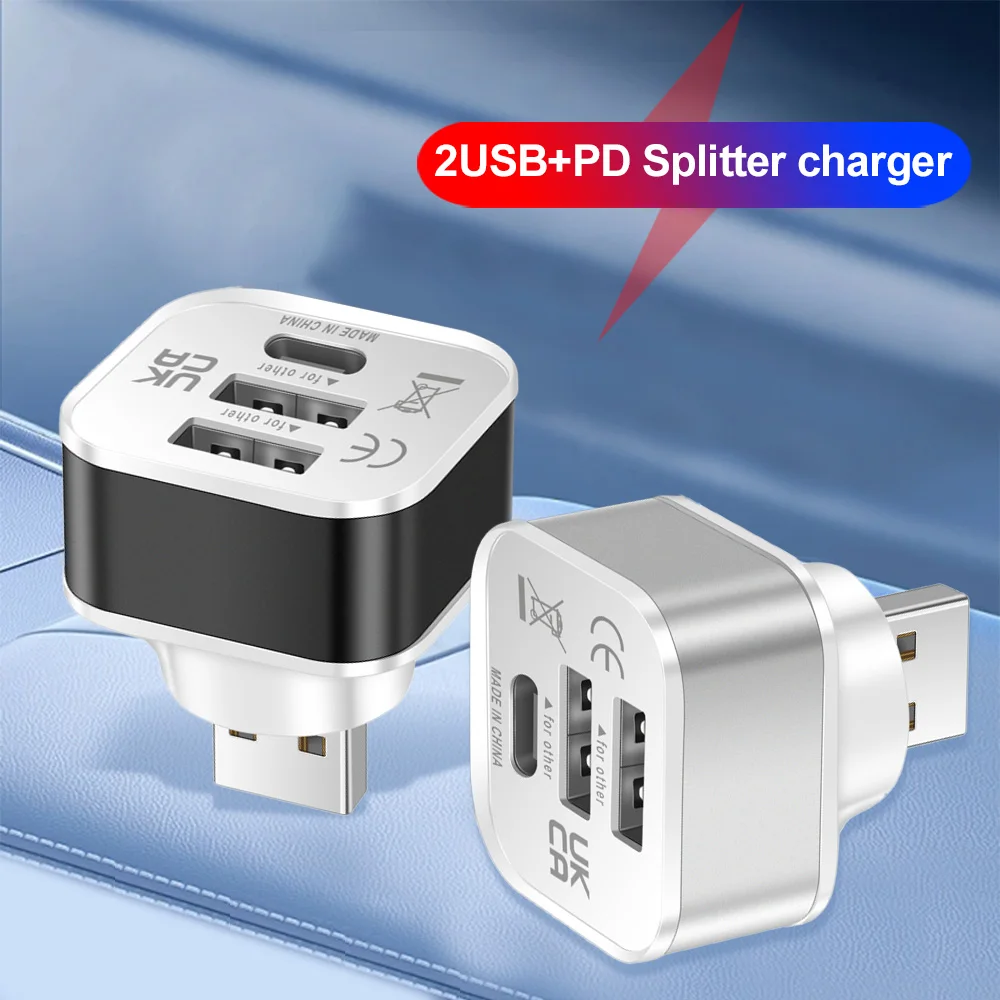 HUB USB 2.0 Adapter 3 Port USB Extender Quick Charge…
3.80 USD